Supplier Management
This guide covers supplier management for EZ Cloud Essentials.
If your organization uses EZ Cloud Enterprise with ERP integration, see Supplier Management (Enterprise).
EZ Cloud Essentials provides standalone supplier management, allowing you to maintain your own supplier database, invite suppliers to the portal, and store supplier-related documents.
Supplier List
Access suppliers by clicking Suppliers in the main navigation.
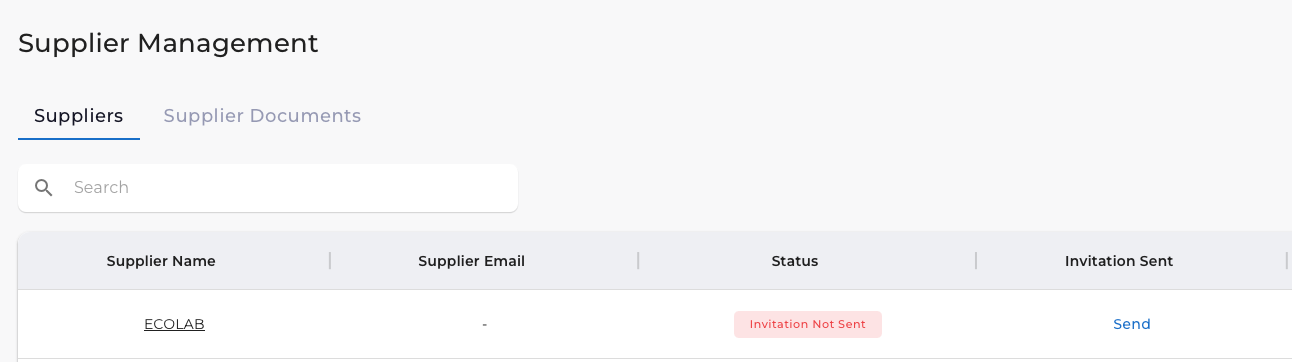
The Suppliers tab displays all suppliers in your system:
| Column | Description |
|---|---|
| Supplier Name | Vendor name (click to view details) |
| Supplier Email | Contact email address |
| Status | Invitation status |
| Invitation Sent | Action to send/resend portal invitation |
Adding a Supplier
To add a new supplier:
- Click Invite Supplier
- Complete the supplier form:
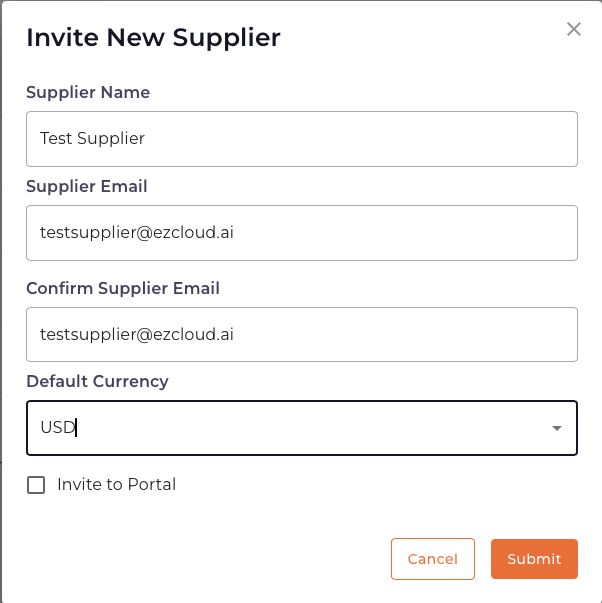
| Field | Description |
|---|---|
| Supplier Name | Vendor's business name |
| Supplier Email | Contact email for the supplier |
| Confirm Supplier Email | Re-enter email to confirm |
| Default Currency | Currency for this supplier's invoices (e.g., USD) |
| Invite to Portal | Check to send a Supplier Portal invitation |
- Click Submit to create the supplier
Invite to Portal
The Invite to Portal option sends the supplier an email invitation to access the Supplier Portal. The Supplier Portal allows vendors to submit invoices directly into EZ Cloud.
Benefits of Supplier Portal:
- Suppliers can submit invoices 24/7
- Reduces manual data entry for your AP team
- Provides suppliers visibility into invoice status
- Ensures invoices are submitted in a consistent format
How It Works
- You invite a supplier from the Supplier List
- Supplier receives an email with registration link
- Supplier creates their portal account
- Supplier can now upload invoices and track status
Filtering Suppliers
Click the filter icon to search for specific suppliers:
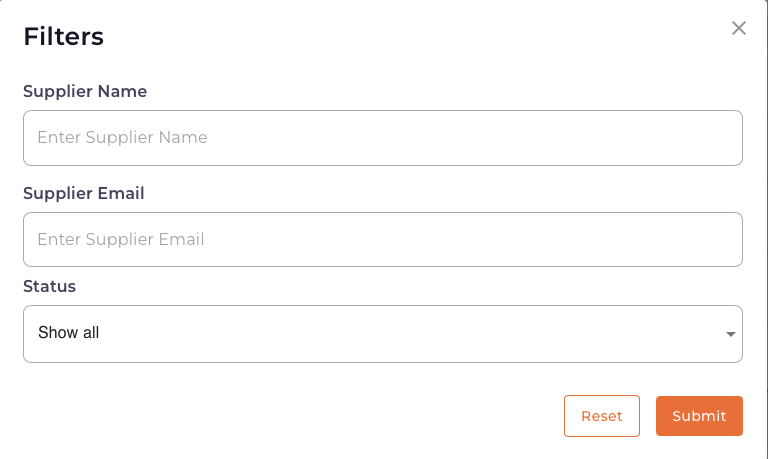
| Filter | Description |
|---|---|
| Supplier Name | Search by vendor name |
| Supplier Email | Search by email address |
| Status | Filter by invitation status |
Click Submit to apply filters or Reset to clear.
Supplier Documents
The Supplier Documents tab allows you to store and manage documents associated with each supplier.

Document List
| Column | Description |
|---|---|
| Supplier Name | Vendor associated with the documents |
| Document Count | Number of documents stored |
| Actions | Add new documents |
Adding Documents
- Navigate to Suppliers → Supplier Documents
- Find the supplier
- Click + Add Document
- Upload the file and provide details
- Click Save
Supplier Documents is useful for storing:
- W-9 forms and tax documents
- Contracts and agreements
- Insurance certificates
- Vendor onboarding paperwork
Exporting
Click Export to download supplier document data as a CSV file.
Quick Reference
| Task | How To |
|---|---|
| Add supplier | Click Invite Supplier, fill form, submit |
| Invite to portal | Check Invite to Portal when adding supplier |
| Resend invitation | Click Resend in Invitation Sent column |
| Search suppliers | Click filter icon, enter criteria |
| Add document | Supplier Documents tab → + Add Document |
| Export data | Click Export button |