User Management
This guide covers user management for EZ Cloud Enterprise.
If your organization uses EZ Cloud Essentials (standalone), see User Management (Essentials).
User Management is only accessible to users with administrator permissions.
Accessing User Management
Navigate to Administration → Users to manage your team.
Tabs
| Tab | Description |
|---|---|
| Users and Permissions | Manage users, roles, and granular permissions |
| Approval Limits | Configure approval thresholds |
Users and Permissions
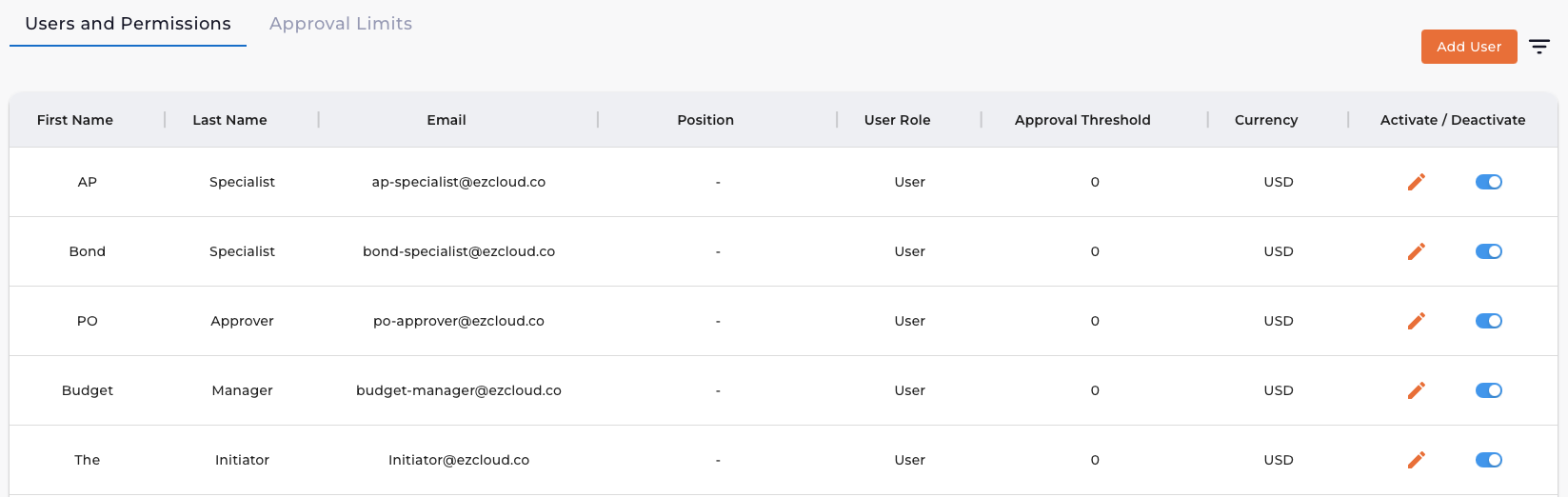
The user list displays all team members:
| Column | Description |
|---|---|
| First Name | User's first name |
| Last Name | User's last name |
| Login email address | |
| Position | Job title |
| User Role | Admin or User |
| Approval Threshold | Maximum approval amount |
| Currency | Approval currency |
| Activate/Deactivate | Toggle to enable or disable user access |
Adding a User
Click Add User to create a new team member.
Editing a User
Click the pencil icon to modify a user. The edit modal has three tabs.
General Tab
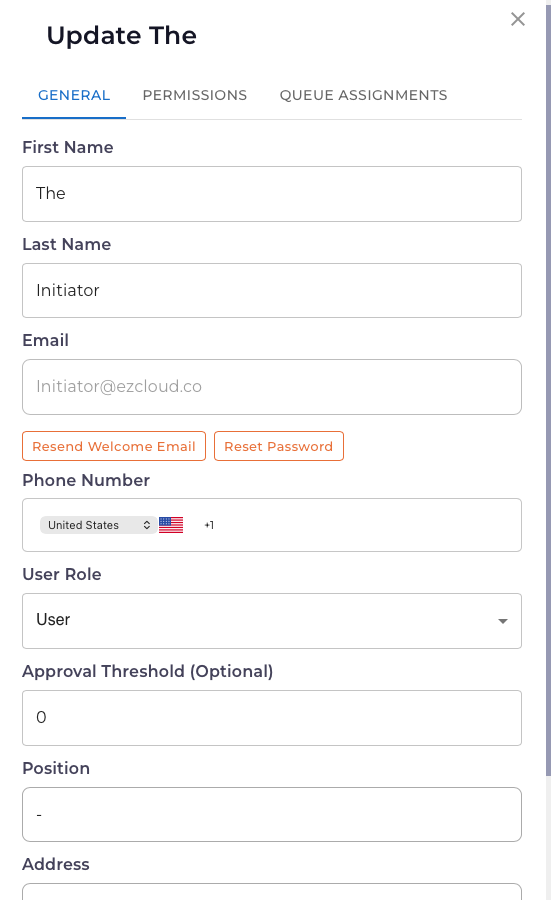
| Field | Description |
|---|---|
| First Name | User's first name |
| Last Name | User's last name |
| Login email (read-only after creation) | |
| Resend Welcome Email | Send login instructions again |
| Reset Password | Force a password reset |
| Phone Number | Contact number |
| User Role | Admin or User |
| Approval Threshold | Maximum amount user can approve (see Queue Visibility Rules) |
| Position | Job title |
| Address | User's address (optional) |
Permissions Tab
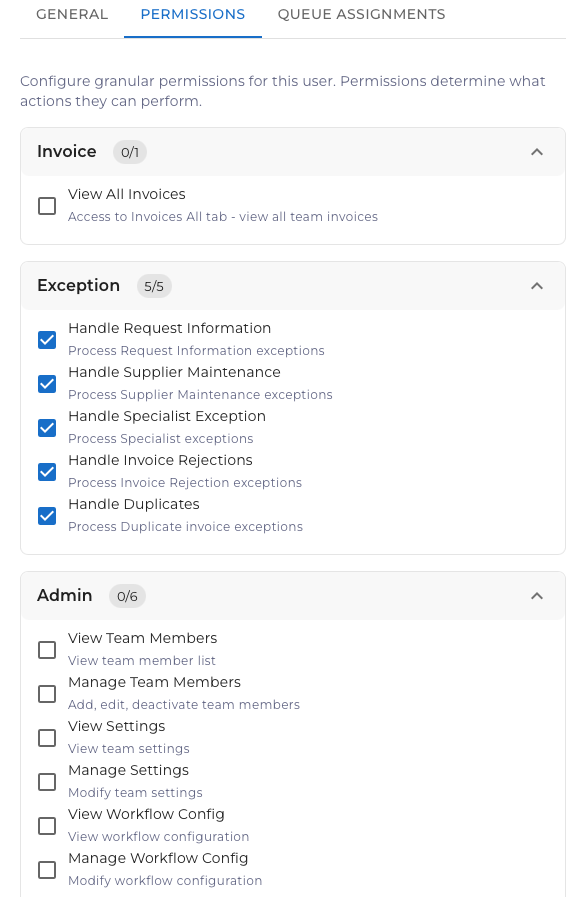
Configure granular permissions for each user. Permissions are organized into categories:
Invoice Permissions
| Permission | Description |
|---|---|
| View All Invoices | Access to Invoices All tab - view all team invoices |
Exception Permissions
| Permission | Description |
|---|---|
| Handle Request Information | Process Request Information exceptions |
| Handle Supplier Maintenance | Process Supplier Maintenance exceptions |
| Handle Specialist Exception | Process Specialist exceptions |
| Handle Invoice Rejections | Process Invoice Rejection exceptions |
| Handle Duplicates | Process Duplicate invoice exceptions |
Admin Permissions
| Permission | Description |
|---|---|
| View Team Members | View team member list |
| Manage Team Members | Add, edit, deactivate team members |
| View Settings | View team settings |
| Manage Settings | Modify team settings |
| View Workflow Config | View workflow configuration |
| Manage Workflow Config | Modify workflow configuration |
Each category shows a count (e.g., "5/5") indicating how many permissions are enabled.
Queue Assignments Tab
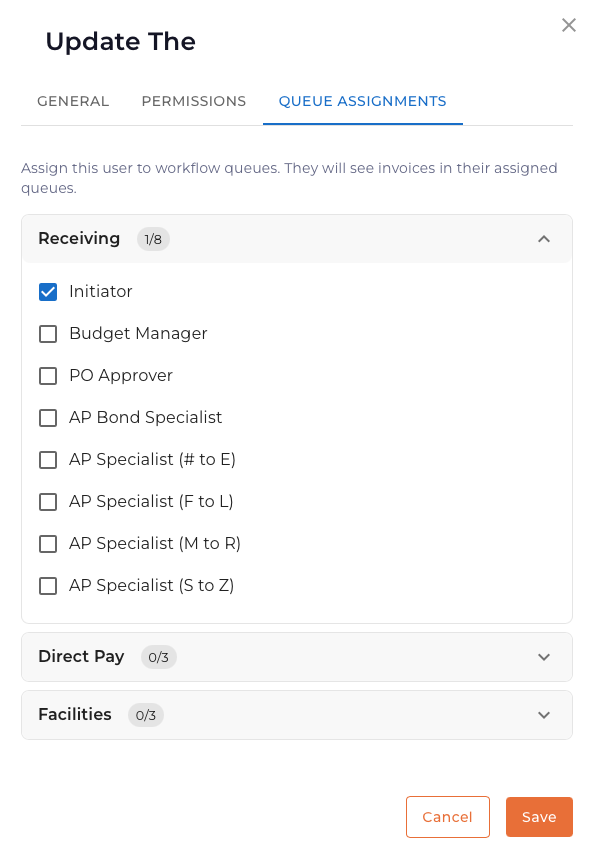
Assign users to workflow queues. Users see invoices in their assigned queues.
Queues are organized by workflow (configured during implementation):
Example Receiving Workflow Roles:
- Initiator
- Budget Manager
- PO Approver
- AP Bond Specialist
- AP Specialist (# to E)
- AP Specialist (F to L)
- AP Specialist (M to R)
- AP Specialist (S to Z)
Other Workflow Categories:
- Direct Pay
- Facilities
Check the roles this user should be assigned to. They will see invoices routed to those roles in their Inbox.
Queue Visibility Rules
Approval thresholds affect what invoices users can see in their queue:
| Rule | Description |
|---|---|
| Invoices above threshold are hidden | Users cannot see invoices that exceed their approval threshold |
| Missing totals are hidden | If an invoice total wasn't extracted correctly, it won't appear in limited users' queues |
When an invoice's total cannot be extracted (e.g., due to poor document quality), that invoice will not appear in the queue of any user with an approval threshold set. Only users without approval thresholds can see and process these invoices.
This ensures users only work on invoices they have authority to approve, while preventing invoices with missing data from being processed by limited approvers who may not realize the amount exceeds their threshold.
Filtering Users
Click the filter icon to search.
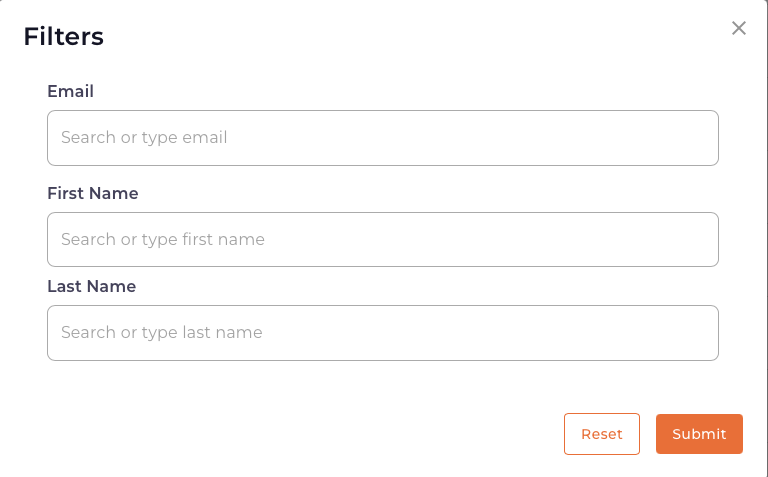
| Filter | Description |
|---|---|
| Search by email address | |
| First Name | Search by first name |
| Last Name | Search by last name |
Activating/Deactivating Users
Use the toggle in the Activate/Deactivate column:
- Enable - User can log in and access the system
- Disable - User cannot log in; invoices are not routed to them
When an employee leaves, deactivate their account rather than deleting it. This preserves the audit trail of their previous approvals.
Quick Reference
| Task | How To |
|---|---|
| Add user | Click Add User, fill form, save |
| Edit user | Click pencil icon on user row |
| Set permissions | Permissions tab → check/uncheck permissions |
| Assign to queues | Queue Assignments tab → check roles |
| Set approval threshold | General tab → Approval Threshold field |
| Disable user | Toggle Activate/Deactivate to off |
| Reset password | General tab → Reset Password button |
| Resend welcome email | General tab → Resend Welcome Email button |
Key Differences from Essentials
| Feature | Enterprise | Essentials |
|---|---|---|
| Granular permissions | Yes | No |
| Queue assignments | Yes | No |
| Approval threshold | Per user | Per supplier |
| Activate/Deactivate toggle | Yes | No |
| Resend welcome email | Yes | No |
| Reset password button | Yes | No |